Data Integrations
Beyond the Add Data menu, GeoLibre connects to several hosted catalogs and imagery providers through dedicated panels and plugins. This page is a map of what is available and where to find it.
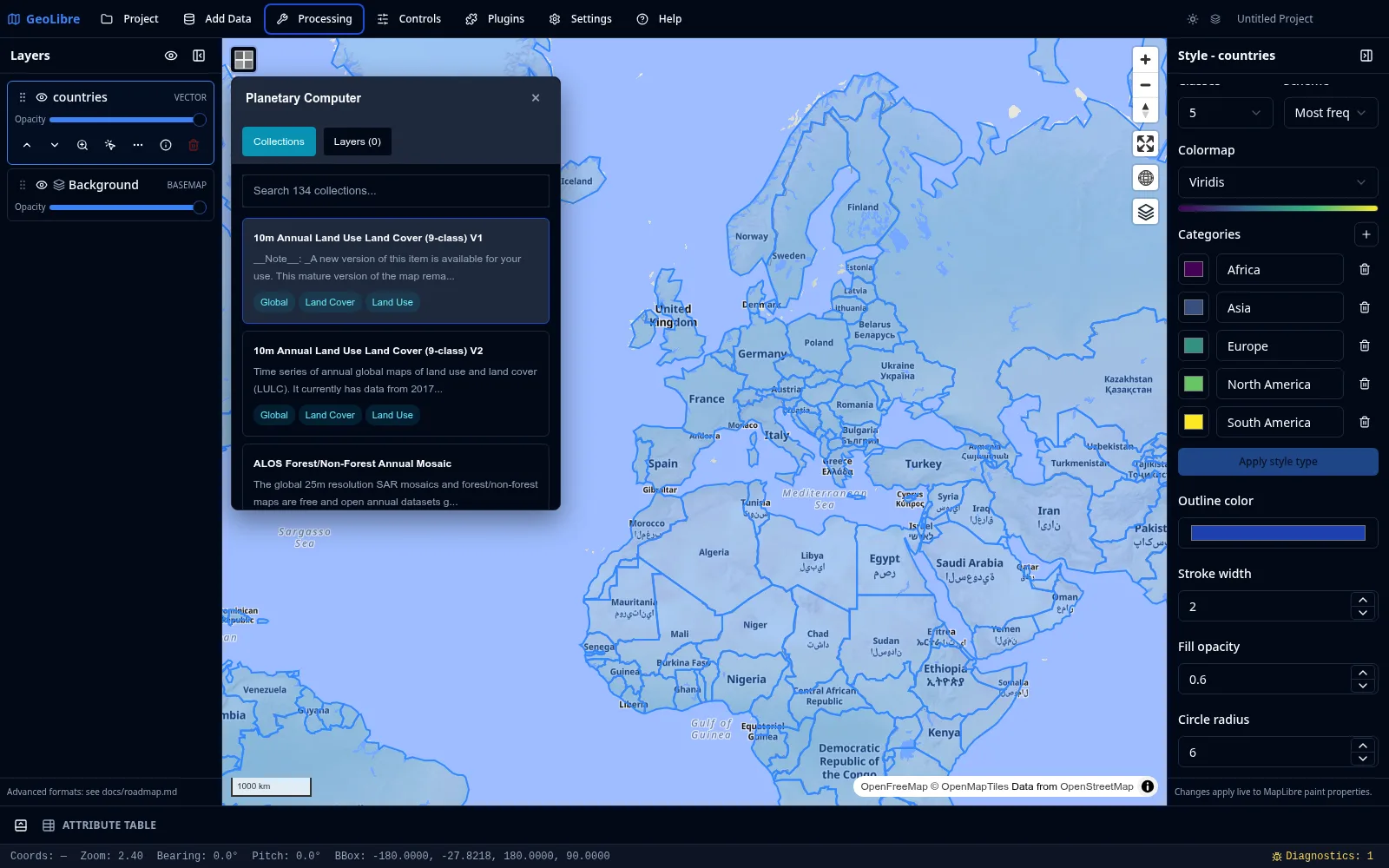
Cloud catalogs
| Integration | Where | What it does |
|---|---|---|
| Planetary Computer | Processing menu | Browse and load STAC data from Microsoft Planetary Computer (Sentinel, Landsat, and more). |
| Earth Engine | Processing menu | Browse and load Google Earth Engine datasets after authenticating. |
| Overture Maps | Plugins menu | Load Overture Maps data themes (such as buildings, places, and transportation). |
| STAC | Add Data menu | Search any STAC catalog and add matching raster items. See Adding Data. |
Credentials
Earth Engine requires authentication, and some providers expect an API key or token. Set these in Settings → Environment Variables. See Settings & Preferences.
Federal Web Services
The Web Services submenu of the Plugins menu bundles four United States federal data sources:
| Service | Data |
|---|---|
| FEMA | National Flood Hazard Layer (NFHL) flood data. |
| NASA Earthdata | NASA satellite and Earth science imagery. |
| EPA EnviroAtlas | Environmental and ecosystem data. |
| USGS | The National Map topographic and geographic layers. |
Imagery and street-level
| Integration | Where | What it does |
|---|---|---|
| Esri Wayback | Plugins menu | Browse historical Esri World Imagery snapshots. |
| Street View | Plugins menu | View Google Street View and Mapillary street-level imagery. Needs provider credentials (see Getting Started). |
Time series and comparison
| Plugin | What it does |
|---|---|
| Time Slider | Animate time series raster and vector data (COG, XYZ/WMTS, WMS-Time, and time-filtered GeoJSON) through a docked timeline. |
| Layer Swipe | Compare two layers side by side with a swipe handle. |
AI analysis
| Plugin | What it does |
|---|---|
| GeoAgent | AI-assisted geospatial analysis. |
All of these are activated from the Plugins menu, where you can also set their on-map position.
Geocoding
GeoLibre can turn addresses into points and points into addresses. Both run through a selectable provider; the public Nominatim service is the default and needs no key.
| Tool | Where | What it does |
|---|---|---|
| Geocode Addresses | Processing menu | Pick a CSV with an address column and geocode each row into a point layer. Each matched row keeps its original columns plus geocode_lat, geocode_lon, geocode_display_name, and geocode_importance (a match score). A per-run provider picker lets you switch backend for that batch. |
| Reverse Geocode | Controls menu | A toggle. While on, click anywhere on the map to look up the address at that point, shown in a popup with a copy button. |
Both send coordinates or addresses to a third-party service, so the first time you enable Reverse Geocode (and whenever you run a batch) your data leaves your device for those requests. Reverse Geocode shows a one-time notice before it is first enabled.
Providers
Choose a backend in Settings → Geocoding. The selection, per-provider API keys, optional endpoint overrides, and contact email are saved with the project.
| Provider | API key | Notes |
|---|---|---|
| Nominatim (OpenStreetMap) | No | Default. Public endpoint is paced and row-capped (see below); point it at a self-hosted instance to relax both. |
| Pelias | Optional | Hosted geocode.earth needs a key; a self-hosted Pelias does not. |
| ArcGIS World Geocoder | Yes | Esri token / API key. |
| Mapbox | Yes | Mapbox access token (pk.…). |
| Yes | Google Maps Geocoding API key. Google does not officially allow browser cross-origin requests to this API, so a same-origin proxy may be required. |
API keys are stored in plain text in the .geolibre.json project file, so avoid sharing a project that carries them (the Project → Share flow can strip environment variables, but provider keys live under Geocoding settings).
Usage policy and limits
Requests to the public Nominatim endpoint are paced to one per second and a single batch run is capped at 1000 rows, in line with the Nominatim usage policy. Browsers cannot set a User-Agent, so the app identifies itself through the page Referer and the optional email parameter. Self-hosted Nominatim and the keyed providers (Mapbox, ArcGIS, Google, hosted Pelias) are not paced or capped by GeoLibre; their own quotas apply.
Configuring with environment variables
The Geocoding settings panel is the easiest way to configure a provider, but the same values can also be set as runtime environment variables (the same VITE_-prefixed mechanism used for imagery credentials). Explicit environment variables override the Settings panel.
| Variable | Default | Purpose |
|---|---|---|
VITE_GEOCODER_PROVIDER |
nominatim |
Provider id: nominatim, pelias, arcgis, mapbox, or google. |
VITE_GEOCODER_API_KEY |
unset | API key / access token for the selected provider. |
VITE_GEOCODER_ENDPOINT |
provider default | Forward (address to point) search endpoint override. |
VITE_GEOCODER_REVERSE_ENDPOINT |
provider default | Reverse (point to address) endpoint override. |
VITE_GEOCODER_EMAIL |
unset | Contact email sent as the email query parameter to identify your client to Nominatim. |